
I automated my restaurant’s daily cash sheets using n8n and claude
(every messy detail)


It is 11 PM. The fryers are finally off. The last customer left an hour ago. Your feet are screaming. And you still have to sit down and manually enter the day's cash drawer totals, credit card batches, and sales numbers into a spreadsheet.
Eleven data points: Visa, Mastercard, Amex, debit, online orders, net sales, GST, PST, tips. Every night, while you have been standing since 6 AM and your eyes are barely focusing on the screen. You make typos. You transpose numbers. You catch the mistake three days later, or you do not catch it at all.
I did this for years. Fifteen to twenty minutes every night, which does not sound like much until you do the math: over 90 hours a year, more than two full work weeks spent squinting at a spreadsheet at 11 PM.
So I automated it. I am going to show you exactly how, including every mistake, every frustrating error message, and the embarrassingly simple fix that almost broke me.
This is the full version. There is a shorter overview article, but if you actually want to build this yourself, this is the one you want. I walk through every node, every setup step, and every place things went sideways.
What Happened When I Built It
I want to be honest about how this went, because if I just showed you the finished workflow you would think I am some kind of technical wizard. I am not. I am a restaurant owner who taught herself automation tools with zero coding background, a lot of stubbornness, and Claude open in a browser tab at all times.
The early weeks were error messages and confusion. "Cannot read properties of undefined" showed up so many times it started appearing in my dreams. But here is the thing about error messages: they are not punishment, they are teachers. Every red box tells you exactly what went wrong in language you can copy directly into Claude and say "what does this mean and how do I fix it?" Most fixes were one line of code or one missed setting.
The hardest part was building the date matching logic. My spreadsheet has monthly tabs with six week sections stacked inside each one, and the workflow has to figure out the right tab, the right week section, and the right column before it can write anything. I built it in layers, one piece at a time. Get the month detection working. Then get the date reading working. Then get the matching working. Each layer took multiple attempts, but layered building is the only way to solve a problem this complex without losing your mind.
Narrator: She had not made a terrible mistake. She was building something real.
Then there was Level 4, which I still think about. After weeks of building, the workflow started crashing every morning. The reason: old unread emails from September were still sitting in my inbox, and when October rolled around, the workflow grabbed them, tried to find September dates in the October tab, failed, and threw an error. I spent 14 hours building increasingly complex code solutions. Filters, date comparisons, conditional routing. None of it worked reliably.
The actual fix took 30 seconds. I opened Gmail and marked the old emails as read.
That was it. The workflow only picks up unread emails. Mark the old ones read, they disappear from the trigger. No code required.
If a 30-second manual fix solves the problem, do the 30-second manual fix. Save the complex engineering for problems that actually need it.
And then one morning I woke up and the data was already there. All eleven values, in the right cells, in the right tab, for the right date. No typos. No manual entry. No 11 PM sessions.
What the Workflow Actually Does
Your POS system sends a daily email with the previous day's sales numbers. The workflow checks your Gmail at 7 AM, finds that email, reads it, pulls out all eleven data points, figures out which month tab and which date column they belong to, writes them all in one batch, and marks the email as read so it never processes the same report twice.
You do nothing. You sleep. You wake up and the spreadsheet is done.
The Spreadsheet Structure
The Google Sheet has one tab per month, named in uppercase: JANUARY through DECEMBER.
Each monthly tab has six week sections stacked vertically, starting at rows 5, 50, 95, 140, 185, and 230. Each week section has one column per day, Monday through Sunday.
Under each date, the spreadsheet tracks eleven data points at specific row offsets from the date header:
Online Visa (+4)
Online MC (+5)
Amex (+6)
MC (+7)
Visa (+8)
Debit (+9)
Net Sales (+11)
GST (+13)
PST (+14)
HST Voids (+15)
Non Cash Tips (+16)
The workflow uses those row offsets to calculate exactly where each value goes. If your spreadsheet has a different layout, you will adjust these offsets in Node 7.
Node-by-Node Walkthrough
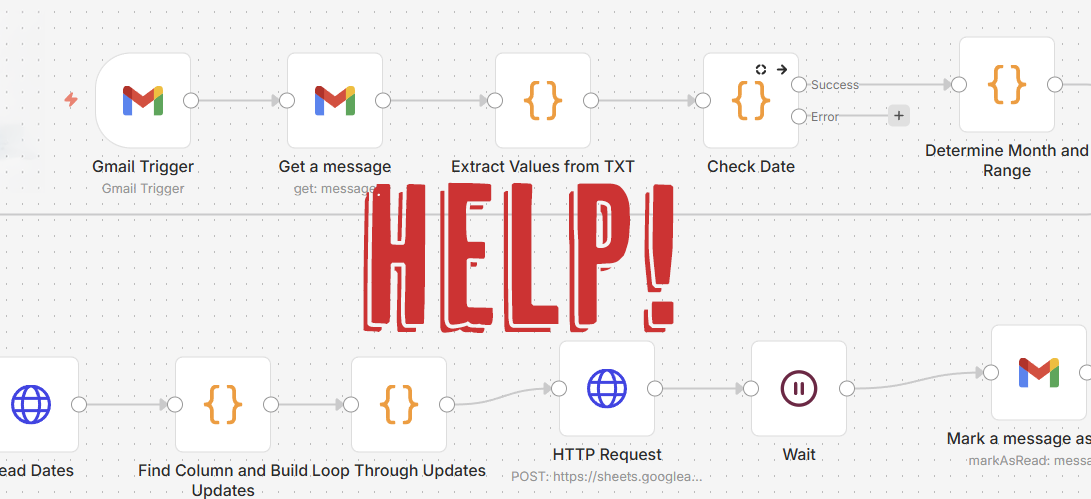
The workflow has 11 nodes.
Node 1: Gmail Trigger
The starting point. It polls your Gmail inbox at 7 AM and filters for unread emails from your POS system's sender address only.
This works with any POS that sends a daily email report. Square uses reports@squareup.com. Toast uses noreply@toasttab.com. Clover uses daily@cloverfab.com. Auphan uses emailer@auphanpos.com. Whatever your POS sends from, that is the address you put here.
The "unread only" filter is critical. Once a report is processed, Node 11 marks it as read and the trigger will never pick it up again.
Node 2: Get a Message
Fetches the full email body where all the numbers live.
Node 3: Extract Values from TXT
The brain of the operation. It parses the date from the email and uses regex patterns to find and extract all eleven values. Each payment type has its own pattern that matches the label in the email and grabs the dollar amount after it.
For example, the Debit pattern:
/Debit[^:]:s$?([d,.-]+)/
Plain language: find the word "Debit," skip anything until you hit a colon, grab the number that follows.
The node has a fallback built in: if Net Sales is not found by its label, it calculates the total from the individual payment amounts instead.
The output is a clean data object: searchDate, onlineVisa, onlineMC, amex, mc, visa, debit, netSales, gst, pst, and nonCashTips.
This is the node you will customize if your POS email uses different labels. See the Customization section below.
Node 4: Check Date
Validates that a date was successfully extracted. If no date is found, the workflow routes to an error notification instead of crashing. It also carries the email's message ID forward so Node 11 can mark it as read later.
Node 5: Determine Month and Range
Takes the extracted date and figures out which month tab to open. "3-Jan-26" becomes "JANUARY." It handles edge cases like late-December dates that need to check the JANUARY tab, then builds the API call to read all eight week header rows at once so the workflow can search for today's date in one shot.
This is where your Spreadsheet ID goes. See Step 4 in the setup instructions below.
Node 6: Read Dates
Calls the Google Sheets API and fetches all the date header rows from the month tab. This is the data Node 7 searches through.
Node 7: Find Column and Build Updates
The matching engine. It scans every date header from Node 6 looking for today's date. When it finds a match, it knows which week section and which column letter. From there, it calculates the exact cell reference for all eleven data points using the row offsets above.
So if today's date is in column D of the week section starting at row 50, Online Visa goes in D54, Online MC in D55, and so on.
The node builds a complete list of cell-value pairs. If the date is not found, it throws a clear error: "Date not found. Check your tab is UPPERCASE and dates match format 1-Jan-25."
Node 8: Loop Through Updates
Takes the update list from Node 7 and adds the month tab prefix to each cell reference: "D54" becomes "JANUARY!D54." Prepares the complete batch for the API call.
Node 9: HTTP Request
Sends one cell update at a time to Google Sheets. The workflow makes 11 separate API calls, one per data point.
Node 10: Wait
Pauses 6 seconds between writes to stay within Google's API rate limits. If you run other workflows that write to Sheets simultaneously, increase this to 10–15 seconds.
Node 11: Mark a Message as Read
Once all data is written, marks the original email as read in Gmail. The trigger in Node 1 will never pick it up again. No duplicate entries.
How to Set It Up: 5 Steps
Step 1: Set Up Your Credentials
In N8N, go to Settings > Credentials > Add Credential. You need two:
Gmail OAuth2 — authorizes N8N to read your inbox and mark emails as read
Google Sheets OAuth2 — authorizes N8N to read and write to your spreadsheet
Use the same Google account for both. Once created, go through the workflow and assign your credentials to any node showing a warning icon.
Step 2: Configure the Gmail Trigger
Click Node 1. Replace YOURPOSEMAILSENDERHERE with the actual address your POS sends daily reports from. Not sure what it is? Open Gmail, find one of your daily POS emails, and check the sender field.
Set the poll time to run after your daily close. The default is 7 AM.
Step 3: Create Your Google Sheet (or Download the Template)
Your spreadsheet needs the structure described in the section above: uppercase tab names, week sections at the right row positions, data rows at the right offsets.
I have a free template at aiinn.ai that is already formatted correctly. Download it and either use it directly in Google Sheets or convert it from Excel (see Converting From Excel below).
Step 4: Add Your Spreadsheet ID
Open your Google Sheet. The URL looks like this:
https://docs.google.com/spreadsheets/d/1aBcDeFgHiJkLmNoPqRsTuVwXyZ/edit
The Spreadsheet ID is the long string between /d/ and /edit. Copy it and replace YOURSPREADSHEETID_HERE in two places: Node 5 (Determine Month and Range) and Node 9 (HTTP Request). Search the workflow for that placeholder and you will find both.
Step 5: Test It
Find a recent daily POS email in Gmail and mark it as unread. Go to N8N and click "Test Workflow."
Watch the nodes. Green means success. Red means click it, read the error, and check Troubleshooting below.
When the test finishes, open your Google Sheet and confirm the data landed in the right cells.
If it worked: toggle the workflow to Active. It runs every morning automatically. You are done.
Converting From Excel to Google Sheets
Download the Excel template from aiinn.ai.
Go to drive.google.com.
Drag and drop the file into Google Drive.
Right-click it and select "Open with Google Sheets." Google converts it automatically.
Check that all tabs are uppercase (JANUARY, not January). Right-click any tab and rename if needed.
Customizing for Your POS System
Node 3 is the main thing you will need to customize if your POS email uses different labels.
If your POS labels debit totals as "DEBIT TOTAL:" instead of "Debit:", change this:
/Debit[^:]:s$?([d,.-]+)/
to this:
/DEBIT TOTAL:s*$?([d,.-]+)/
The structure is always the same: find the label, skip to the number, grab it.
Not comfortable editing regex yourself? Paste the content of one of your POS emails into Claude and ask: "Write me a regex pattern that extracts the dollar amount after [your label]." Copy and paste what it gives you into the node.
If your spreadsheet uses different row offsets, adjust the +4, +5, +6 numbers in Node 7. Each offset is the number of rows below the date header where that data point lives.
Troubleshooting
The workflow says "Date not found in sheet" Two things to check. First, your month tab name must be all uppercase: JANUARY, not January. Second, the date format in your sheet must match exactly what the workflow expects: 1-Jan-25, not January 1, 2025. Fix either of those and it will find the date. Numbers are missing or showing as zero Your POS email probably uses different label names than the default regex patterns in Node 3. Open Node 3, look at the pattern for the missing value, then compare it to an actual POS email to see where the label wording differs. The Customization section above walks you through how to update the pattern. Authentication errors Go to Settings > Credentials and re-authorize both your Gmail and Google Sheets credentials. Make sure both are connected to the same Google account that owns the spreadsheet. Rate limit errors from Google Increase the wait time in Node 10 from 6 seconds to 10 or 15 seconds. This usually only happens if you are running multiple workflows that write to Google Sheets at the same time.
Get the Free Template
The complete workflow template (version 2, with sticky note instructions inside N8N attached to every node that needs configuration) is available free at aiinn.ai. Download the spreadsheet template from the same page. Import the workflow, follow the five steps, and you are running.
Vestibulum ante ipsum primis in faucibus orci luctus et ultrices posuere cubilia Curae; Donec velit neque, auctor sit amet aliquam vel, ullamcorper sit amet ligula. Vestibulum ac diam sit amet quam vehicula elementum sed sit amet dui. Praesent sapien massa, convallis a pellentesque nec, egestas non nisi. Nulla porttitor accumsan tincidunt.
Pellentesque in ipsum id orci porta dapibus. Sed porttitor lectus nibh. Vestibulum ac diam sit amet quam vehicula elementum sed sit amet dui. Cras ultricies ligula sed magna dictum porta.